ANDROID BUDGET APP PRIVACY
Check Budget App Backup Boundaries
Separate local app-entry privacy from finance-account data, Android backup and cloud synchronization.
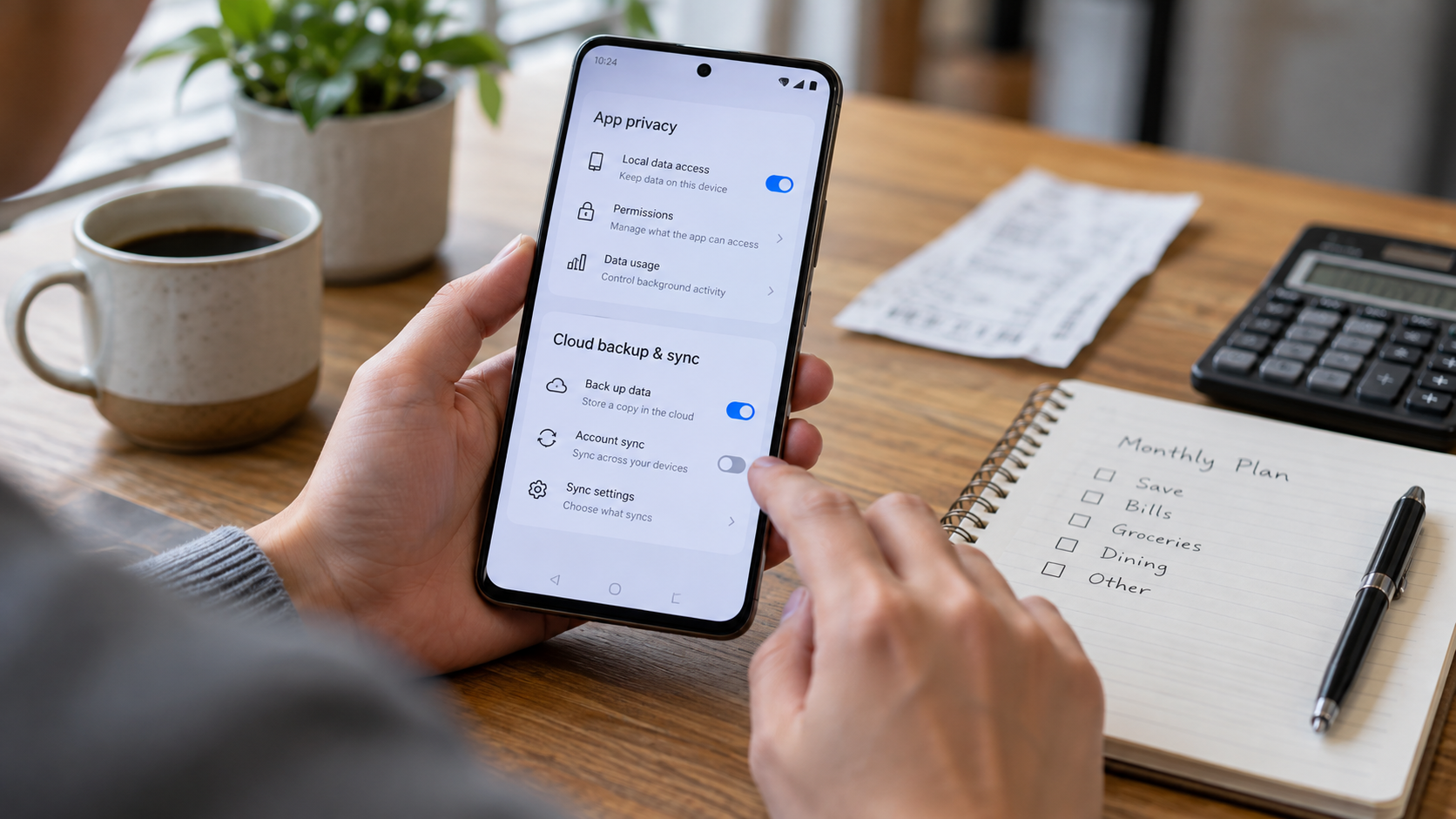
01 / CONTEXT
Define the control decision
A locked icon can conceal a local entry point while the same transactions remain available through a website, another phone, notification archive, exported report or synchronized backup. Map each copy and account separately.
Separate local app-entry privacy from finance-account data, Android backup and cloud synchronization.
02 / PROCEDURE
Run the control sequence
- 01
Identify whether the finance app stores data locally, in an account or both.
- 02
Review Android backup and the provider’s documented restore process.
- 03
Inventory exports, downloads, email reports and synchronized devices.
- 04
Test a harmless device-change scenario with fictional data.
- 05
Record what is recoverable, what is copied and what remains exposed.
03 / EVIDENCE
Preserve proof without personal data
A defensible privacy record identifies the phone owner, Android version, budget apps, sensitive screens, device-lock state, app authentication, secondary-lock configuration, notification exposure, backup behavior, recovery owner and next review date. It should not contain real balances, transactions, account numbers, credentials or personal notes. Use a fictional demo profile during every technical test.
Recheck the arrangement after changes to Android, the finance app, App Lock, device security, notifications, biometrics, cloud backup, account recovery, permissions or shared-phone routines. Confirm both usability and recovery: the owner should enter the finance app when authorized, another phone user should meet the intended barrier, and the owner should recover access without depending on undocumented steps. Preserve unexpected behavior before changing controls.
Keep the claim narrow. A tested entry lock may reduce casual access to one Android application, but it does not encrypt the device, secure the finance account, approve transactions, hide every notification or recent-app preview, detect malware, govern cloud copies, erase exports or guarantee recovery. Escalate those requirements to the Android, finance-provider and account-security controls designed to meet them.
Ask a second tester to follow the written privacy procedure with fictional data. Record whether that person can identify sensitive screens, test the locked entry point, recognize notification exposure, find the recovery owner and explain what remains visible elsewhere. This usability check reveals hidden shortcuts, ambiguous recovery steps and unsupported assumptions before a phone, Android, finance-app or account change.
04 / BOUNDARY
State what the control cannot prove
App entry protection does not encrypt provider data, control cloud retention, prove secure deletion or guarantee restoration after reinstall or device change.
Validate the exact Android version, device lock, finance-app authentication, notification settings, backup behavior and current App Lock release. If device encryption, account security, transaction authorization, malware protection, cloud-backup control or guaranteed recovery are required, select systems designed for those jobs rather than broadening a desktop restriction claim.
05 / SOURCES
Primary references
References support specific controls and do not imply endorsement.